
1.9 Upload and Organize Images in the Media Library
In this article group
- 1.1 Login Process for Veya CMS
- 1.2 How to Recover Access to the CMS
- 1.3 Exploring the Dashboard and CMS
- 1.4 Select Your Brand with the Tenant Filter
- 1.5 Overview of Pages and Layouts
- 1.6 Save a Draft, Preview and Publish
- 1.7 Preview Page Changes Across Devices
- 1.8 Restore a Previous Page Version
- 1.10 Image & Size Specs for Content Layouts
In this walkthrough, you will learn how to upload and organize images within the media library. This process includes uploading files, adding alt text, and filtering media for efficient management.
Go to cms.builtonveya.com
1. Access the Media Category Section
To get started, let's navigate to the Media Category in the left-hand menu.
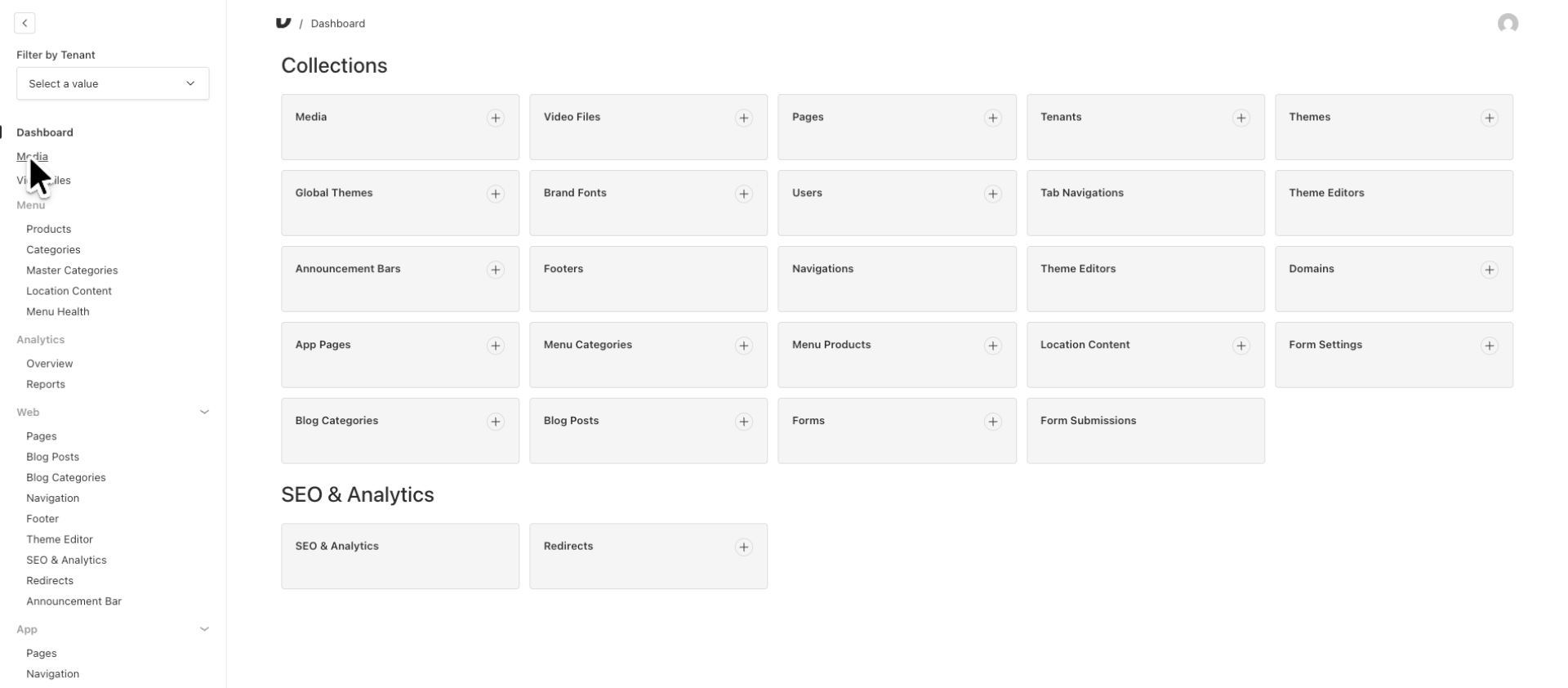
2. Open Media Category
Open the media options panel to access filtering and organizational tools for your media files.
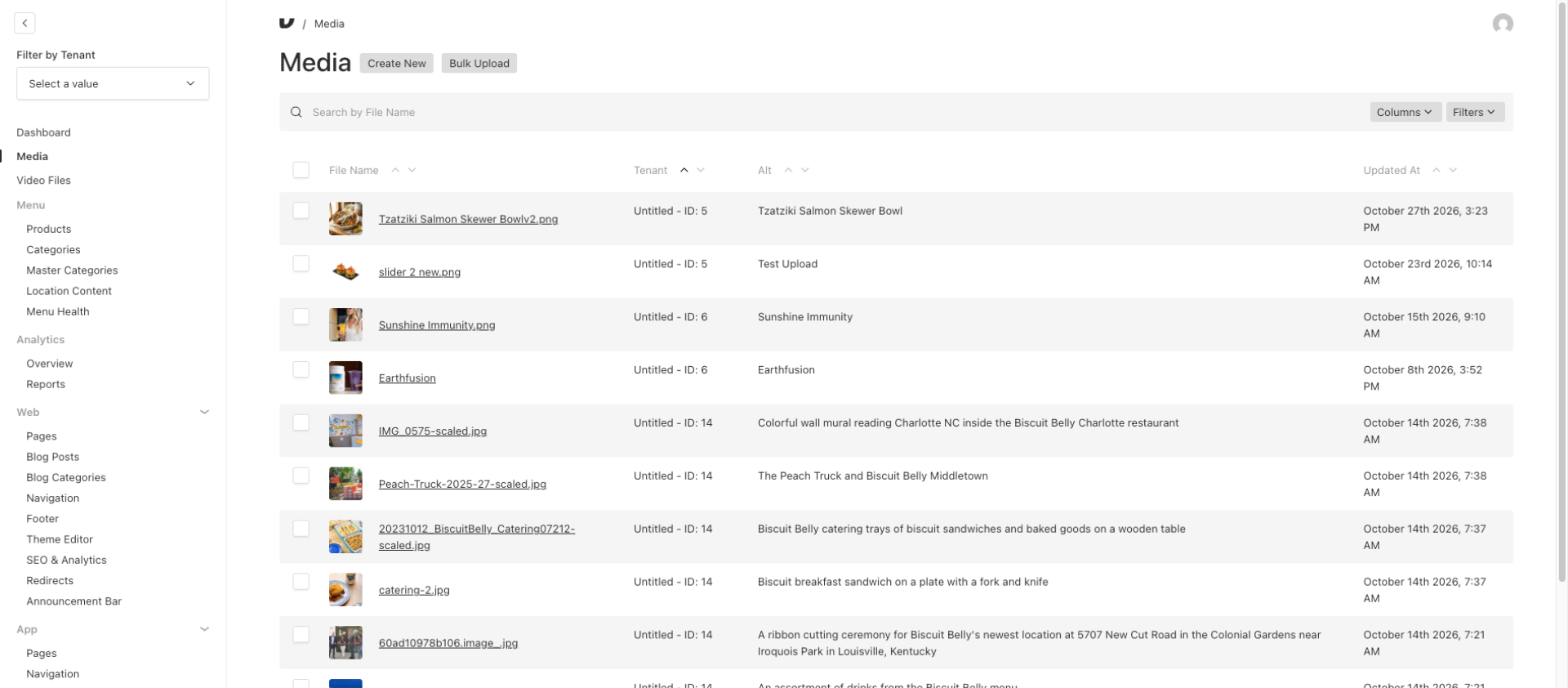
3. Initiate New Media Upload
Begin uploading a new image by clicking "Create New" at the top of the page.
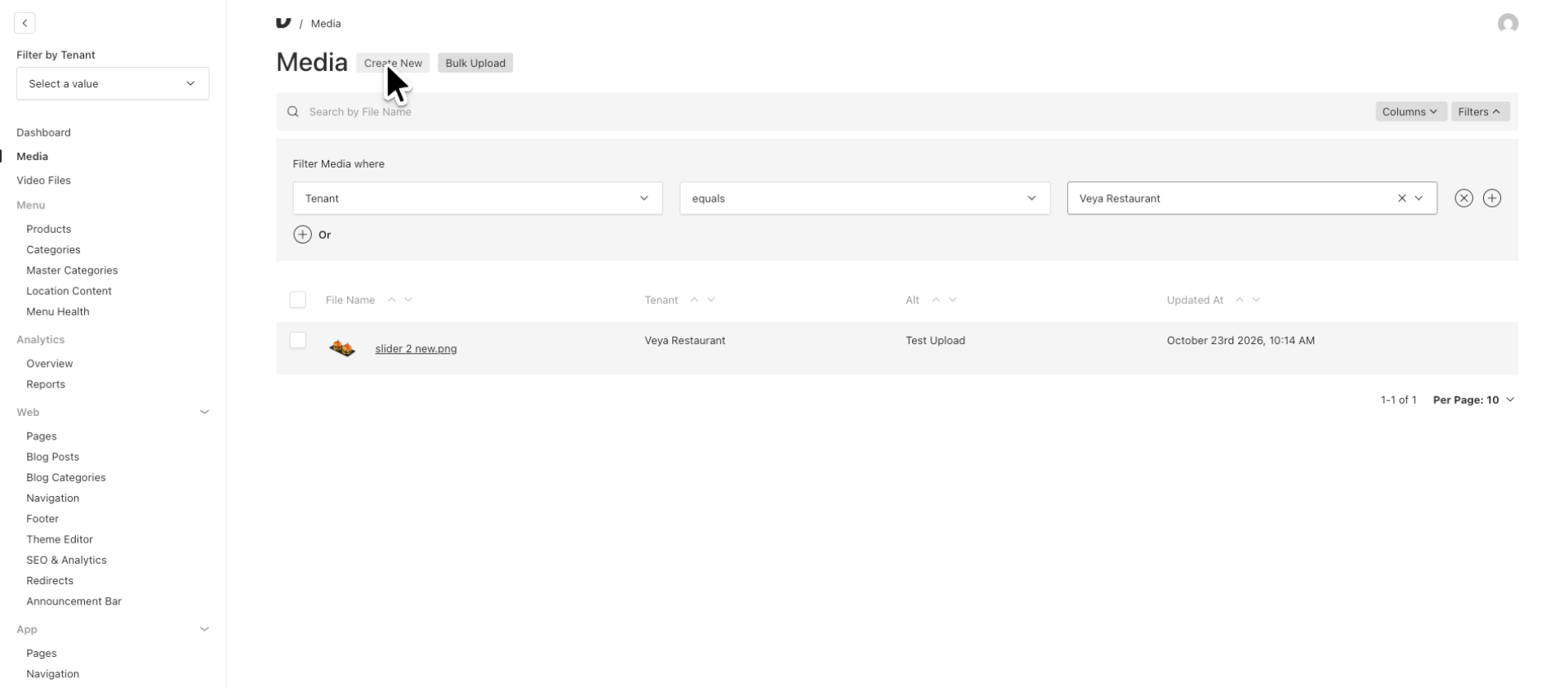
4. Upload a Media File or Paste URL
Click "Select a file" to choose an image from your hard drive. Alternatively, you can paste a URL if the image is hosted on a server you have permission to use.
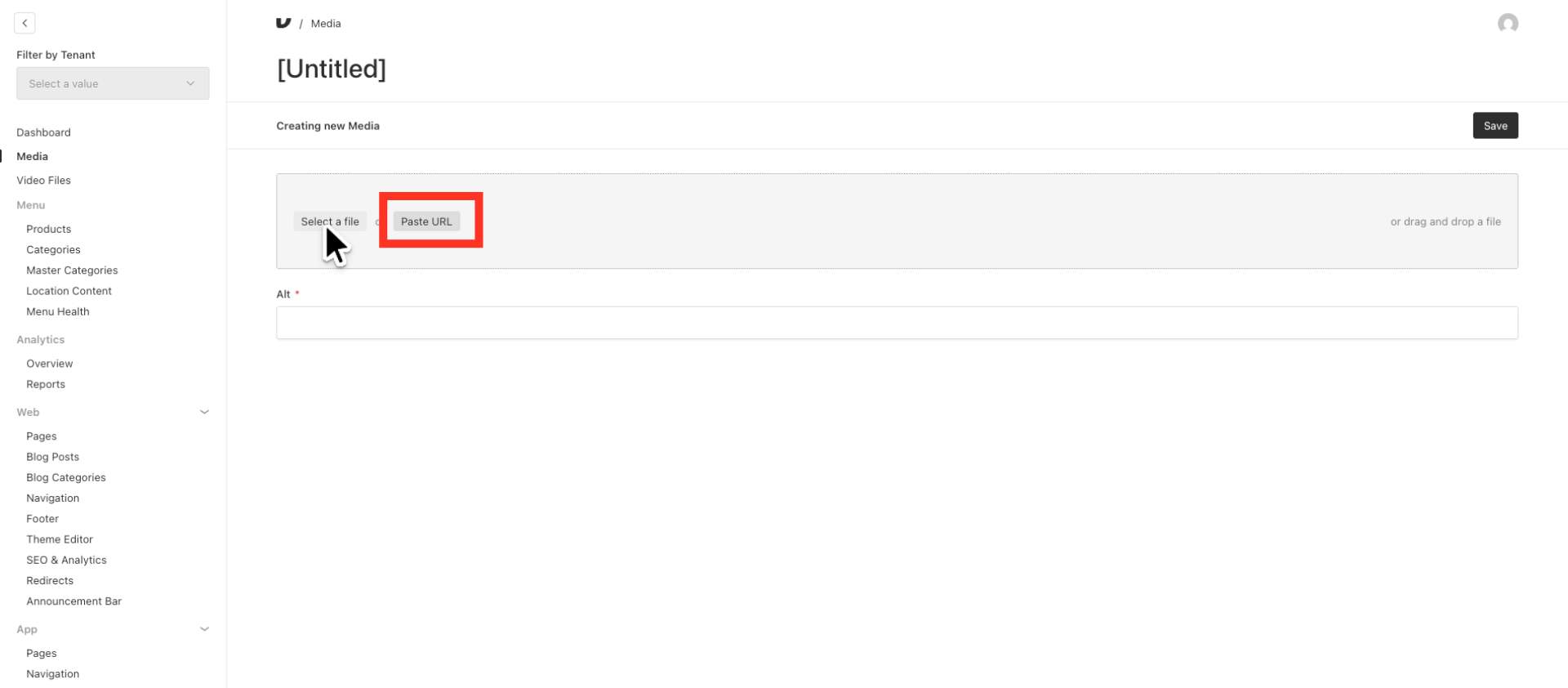
5. Choose the Media File to Upload
Select the desired image file from your device and upload it to your media library.
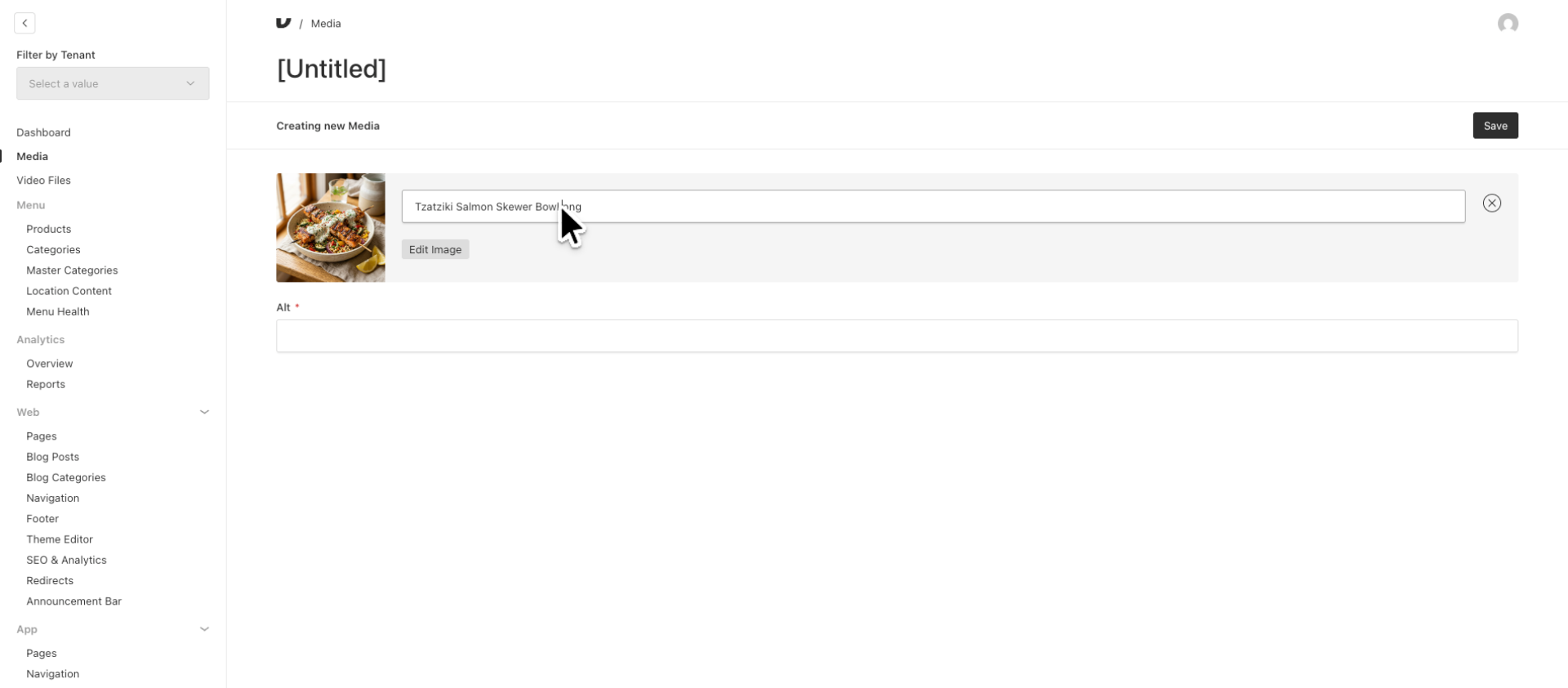
6. Enter Alternative Text for Image
You must provide descriptive alt text for the image to enhance accessibility and meet screen reader requirements.
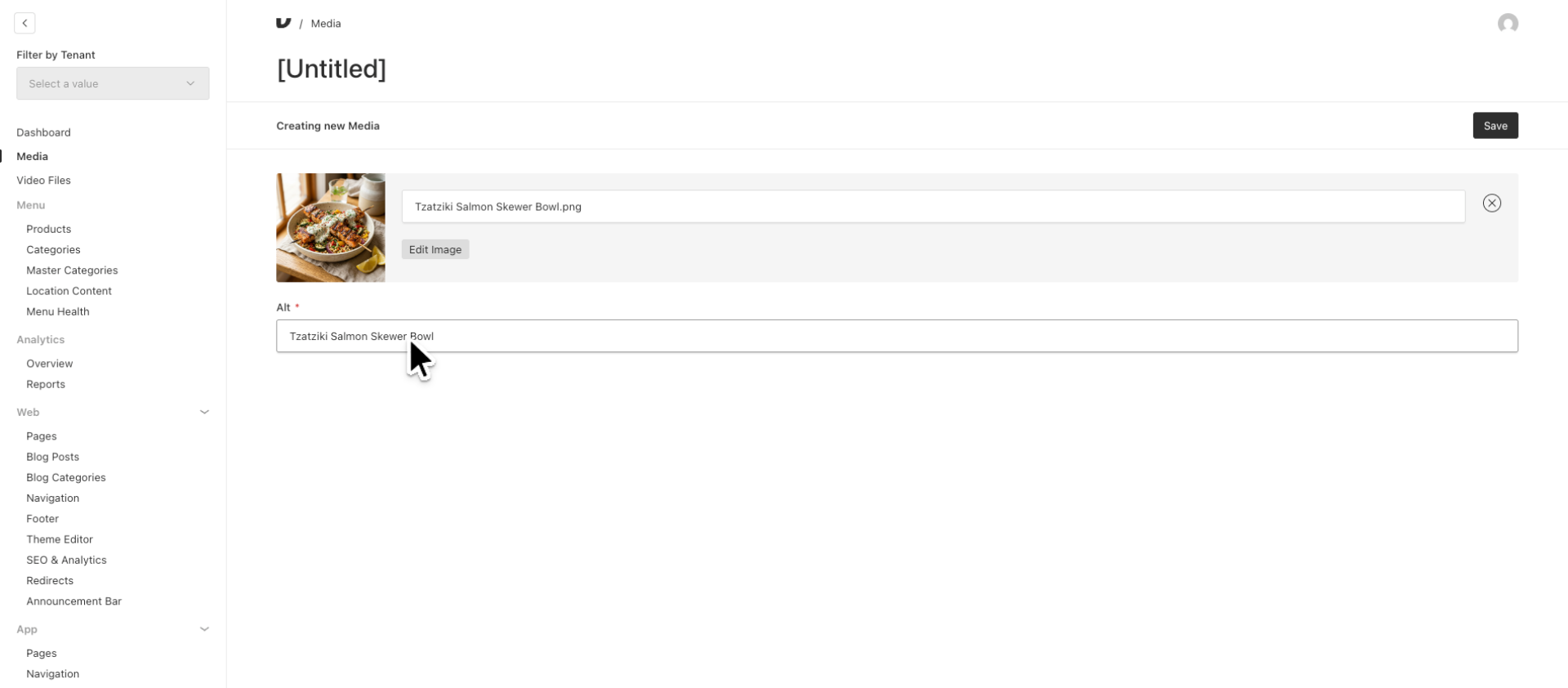
7. Save the Uploaded Image
Save the new image along with its alt text to ensure it is stored correctly and accessible in the media library.
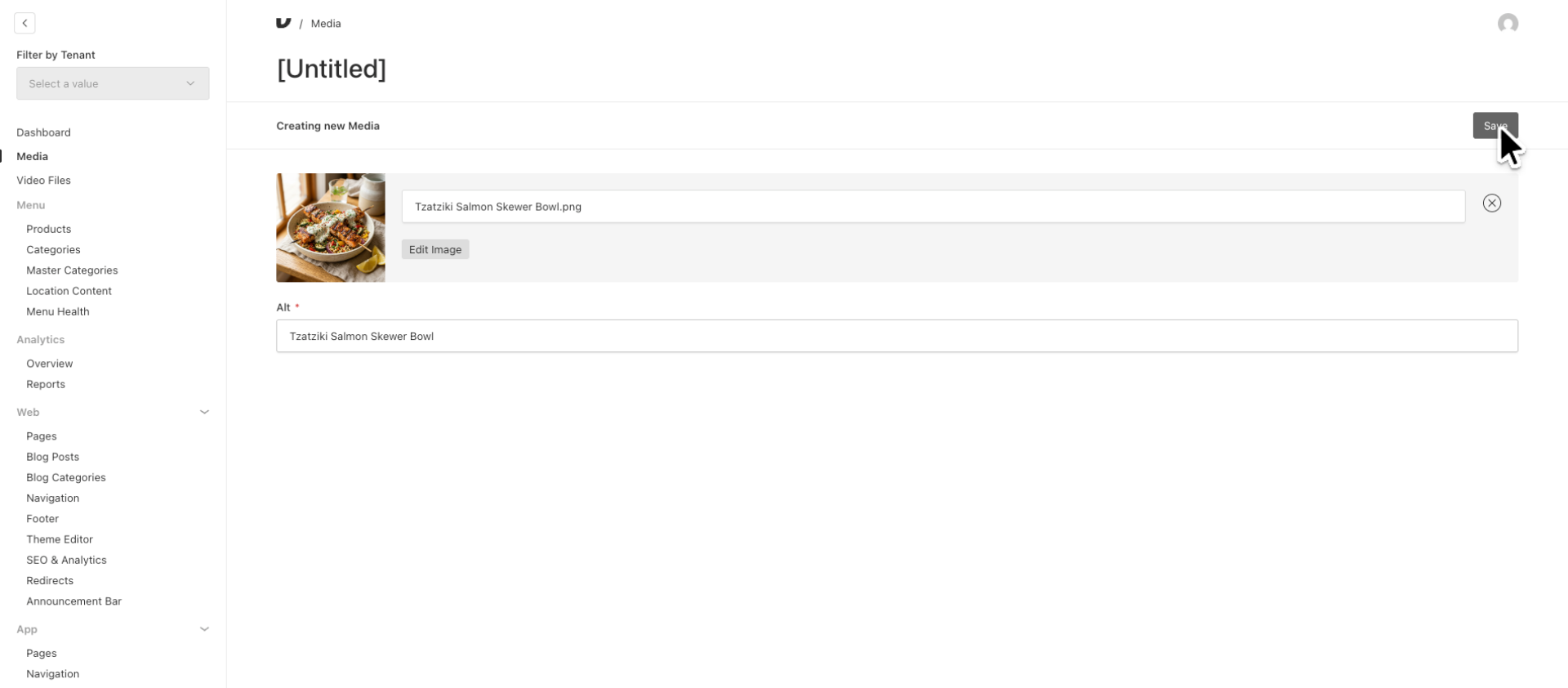
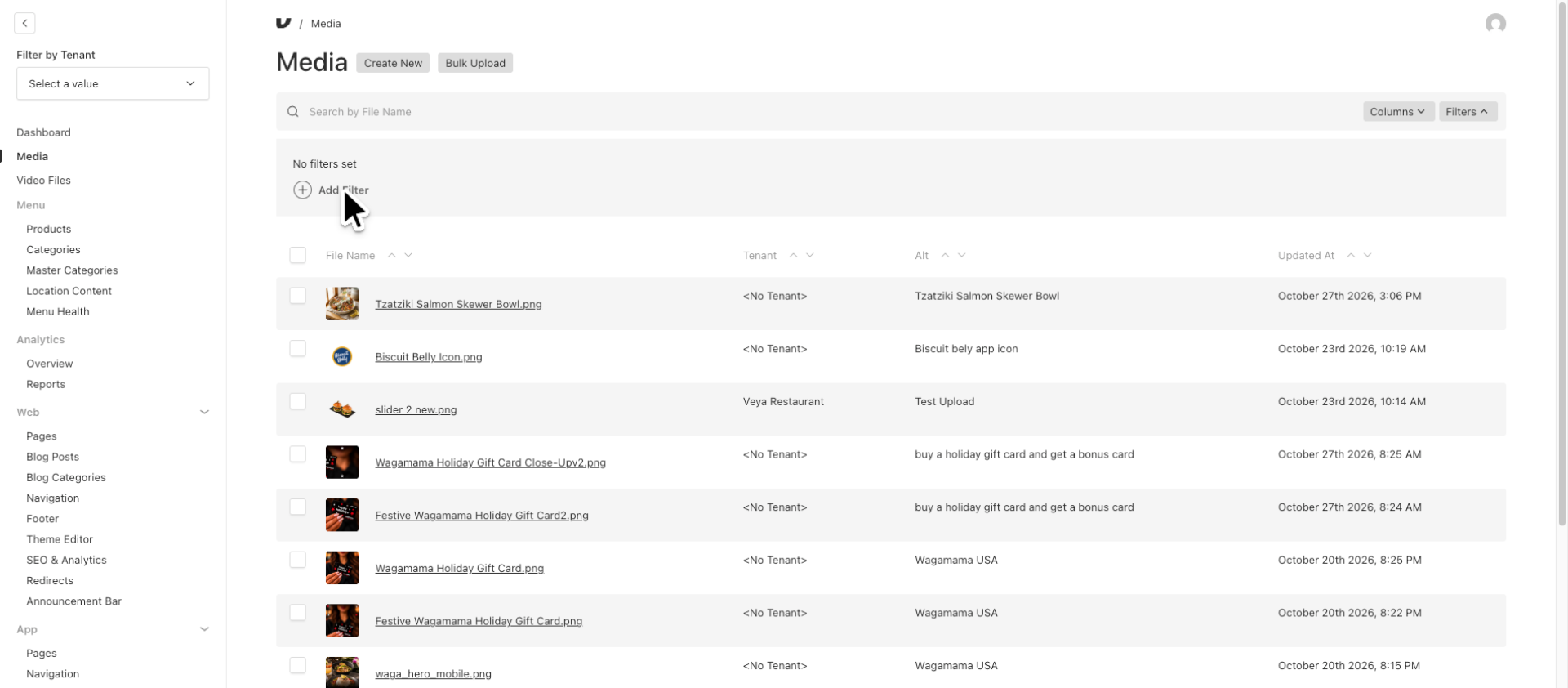
8. Filter Images
To filter for specific images, click the filter button located on the right side of the search bar.
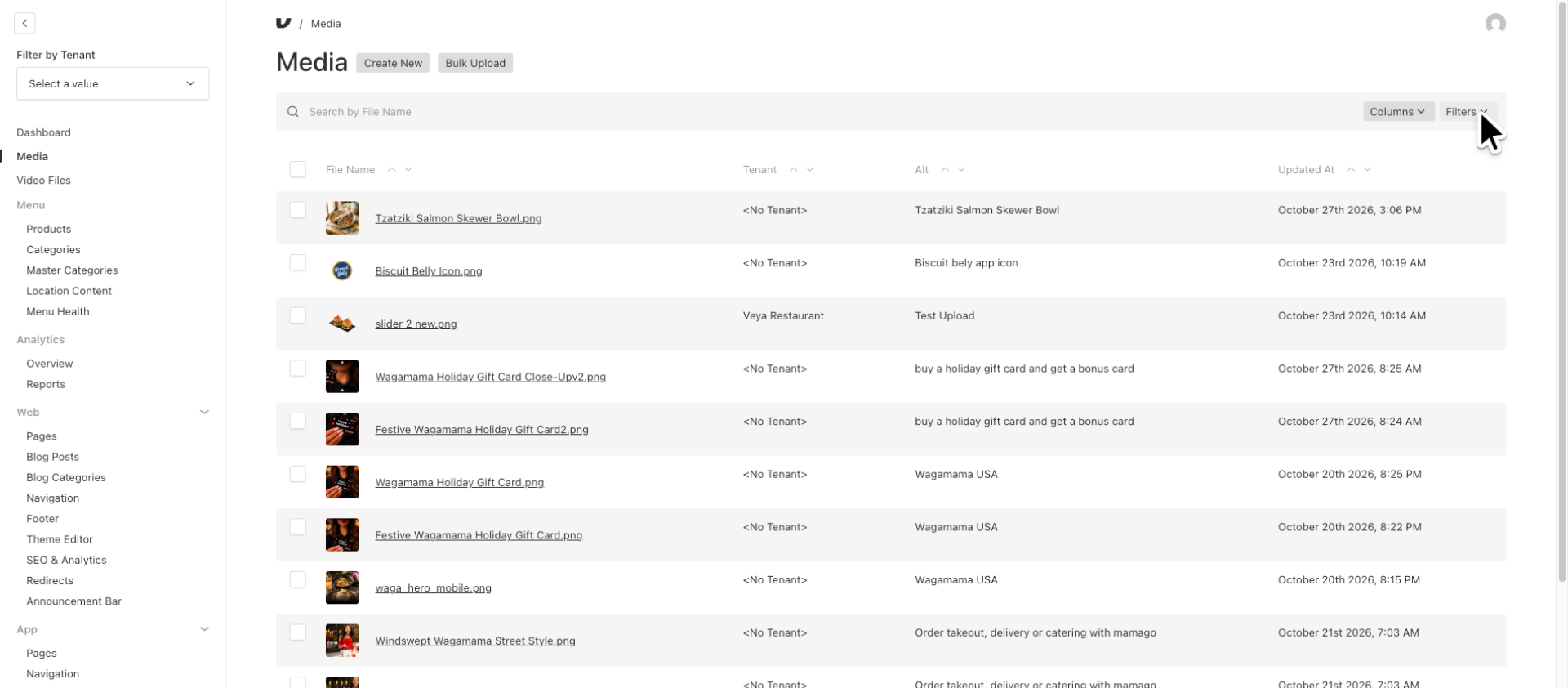
9. Add a Specific Filter
Utilize filters on your media list to quickly find specific images among numerous files in the media library.
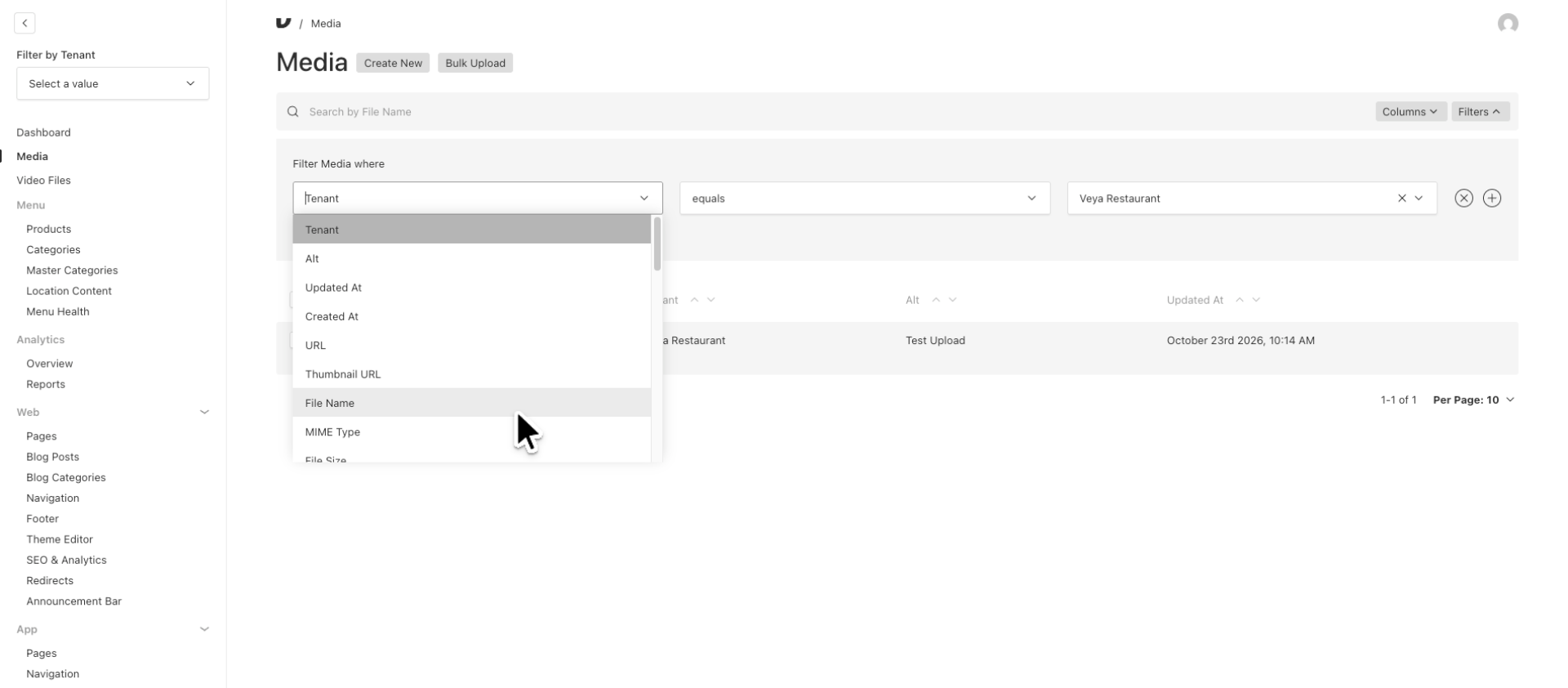
10. Filter Media by Tenant
In this example, I will filter by tenant to display only the images specific to the Veya Restaurant Tenant. You can filter using a variety of options.
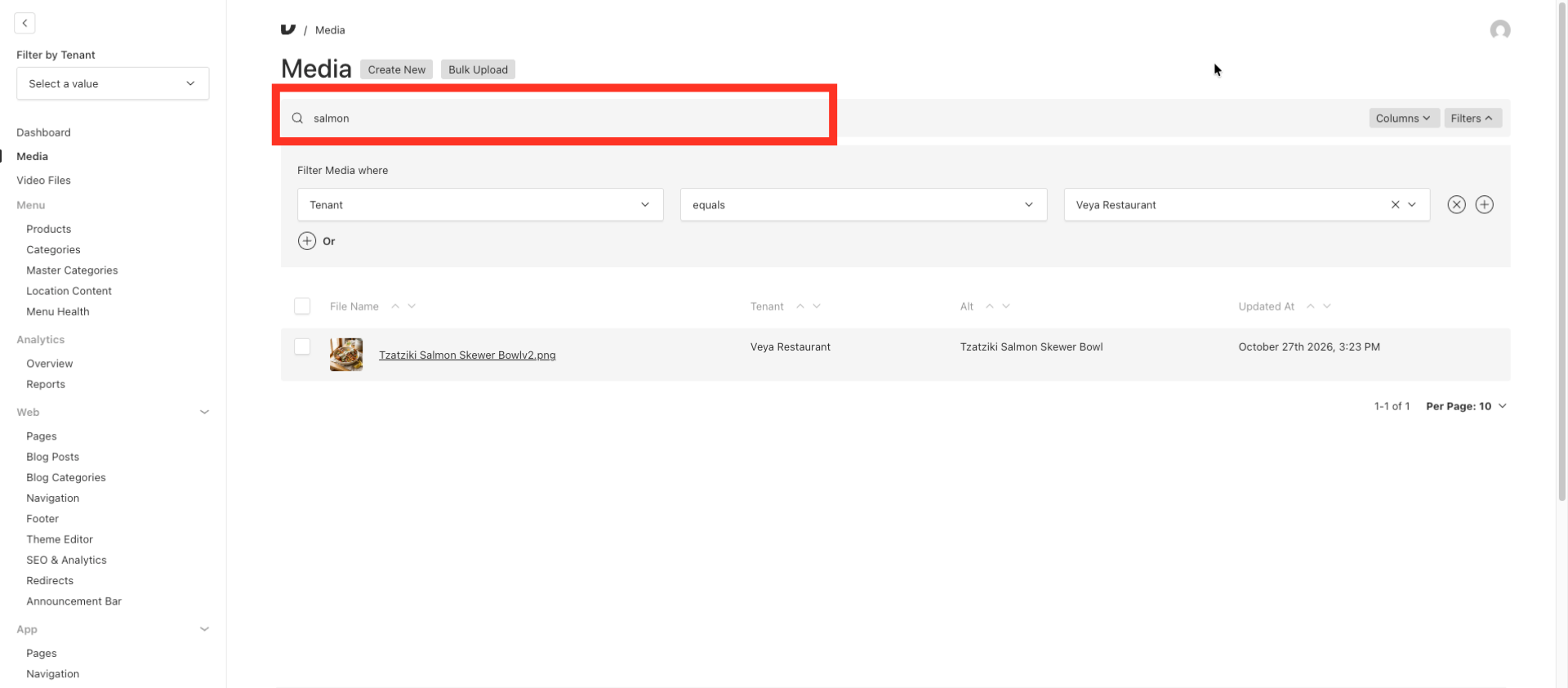
11. Use the Search Bar
You can also utilize the search bar to enter specific terms related to the file you are seeking.
This walkthrough provides step-by-step instructions for uploading, organizing, and filtering images in the media library, enabling you to efficiently manage your media assets.