
1.4 Select Your Brand with the Tenant Filter
In this article group
- 1.1 Login Process for Veya CMS
- 1.2 How to Recover Access to the CMS
- 1.3 Exploring the Dashboard and CMS
- 1.5 Overview of Pages and Layouts
- 1.6 Save a Draft, Preview and Publish
- 1.7 Preview Page Changes Across Devices
- 1.8 Restore a Previous Page Version
- 1.9 Upload and Organize Images in the Media Library
- 1.10 Image & Size Specs for Content Layouts
This article outlines the process for switching between brands within the CMS. You will discover how to change brands using the tenant filter dropdown.
Go to cms.builtonveya.com
1. Access CMS Dashboard
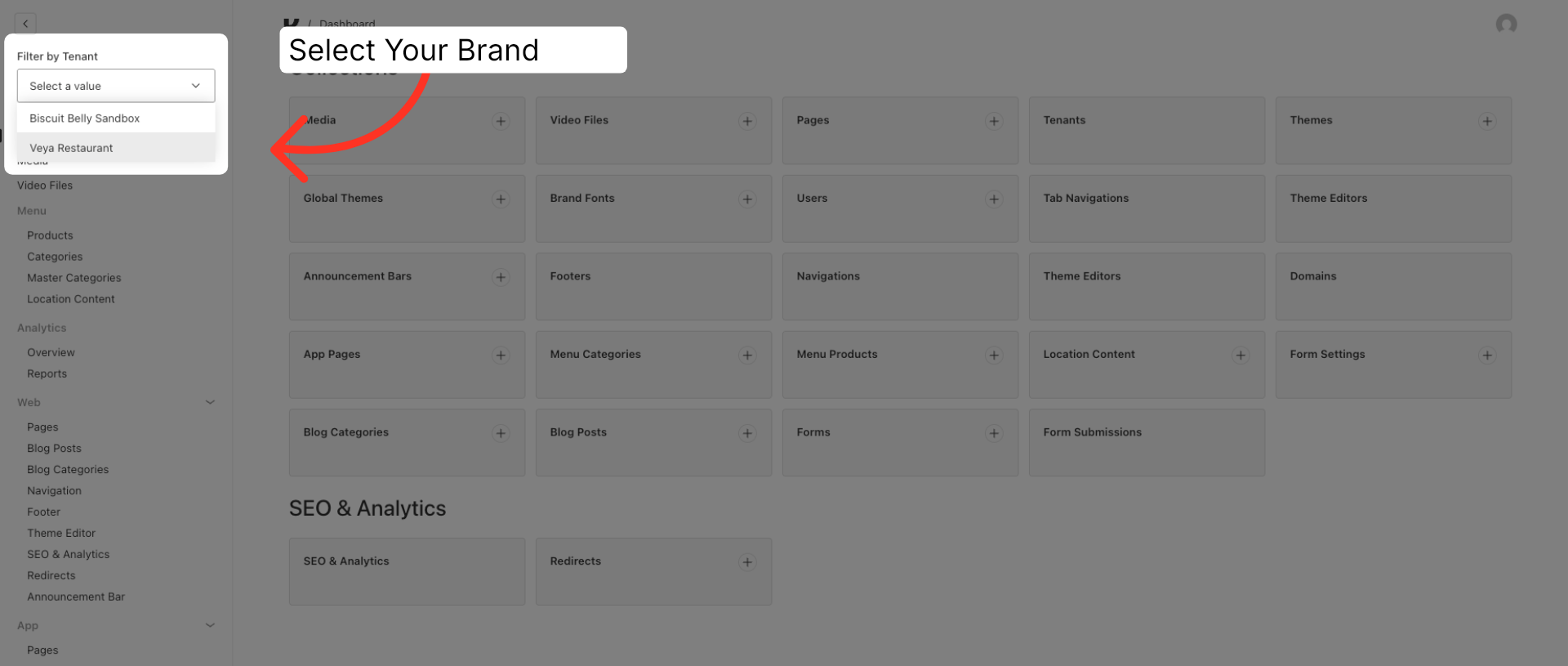
First, access the "Filter by Tenant" dropdown. This will display all your available brands. Select the brand you wish to work on.
2. Navigate to Pages Section
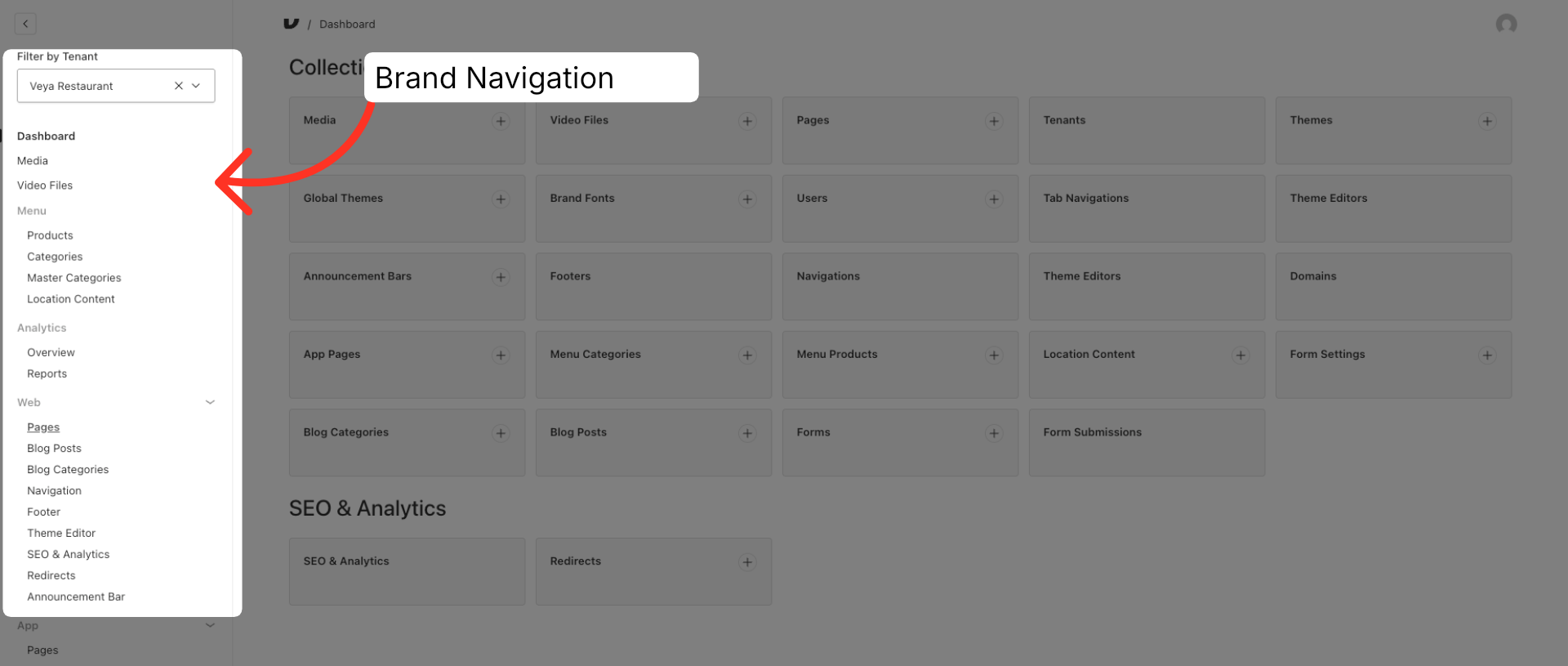
Everything you see now belongs to that brand.
3. Open Page Options Menu
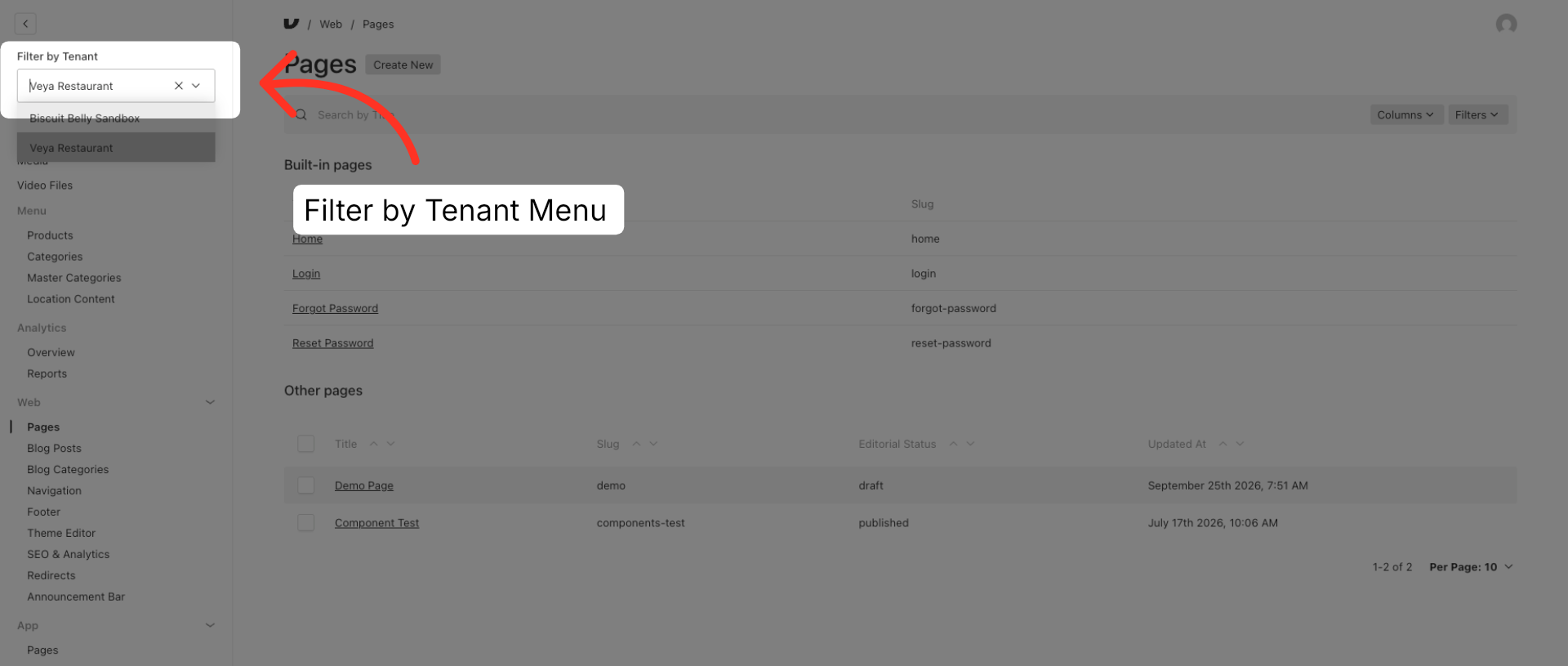
Always verify your brand in the Tenant Dropdown to ensure you are working on the correct brand before making any changes.
This article has guided you in selecting your brand using the tenant filter.