
1.6 Save a Draft, Preview and Publish
In this article group
- 1.1 Login Process for Veya CMS
- 1.2 How to Recover Access to the CMS
- 1.3 Exploring the Dashboard and CMS
- 1.4 Select Your Brand with the Tenant Filter
- 1.5 Overview of Pages and Layouts
- 1.7 Preview Page Changes Across Devices
- 1.8 Restore a Previous Page Version
- 1.9 Upload and Organize Images in the Media Library
- 1.10 Image & Size Specs for Content Layouts
This walkthrough demonstrates how to save your work as a draft, check it in the preview and then publish it to your live site.
Go to cms.builtonveya.com
1. Access Pages Section
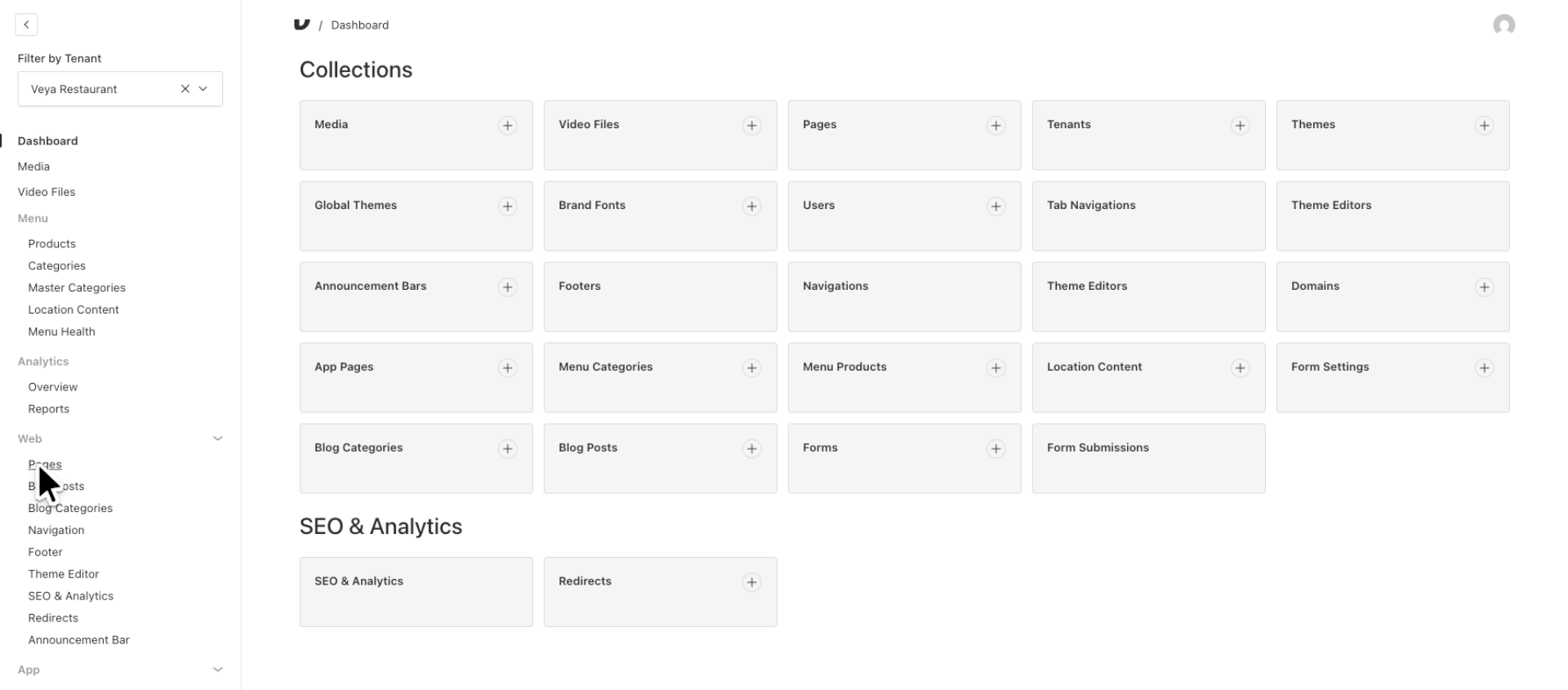
Lets make a content change to our Hero Carousel. Click the Pages tab to access the pages section of the dashboard.
2. Open Home Page
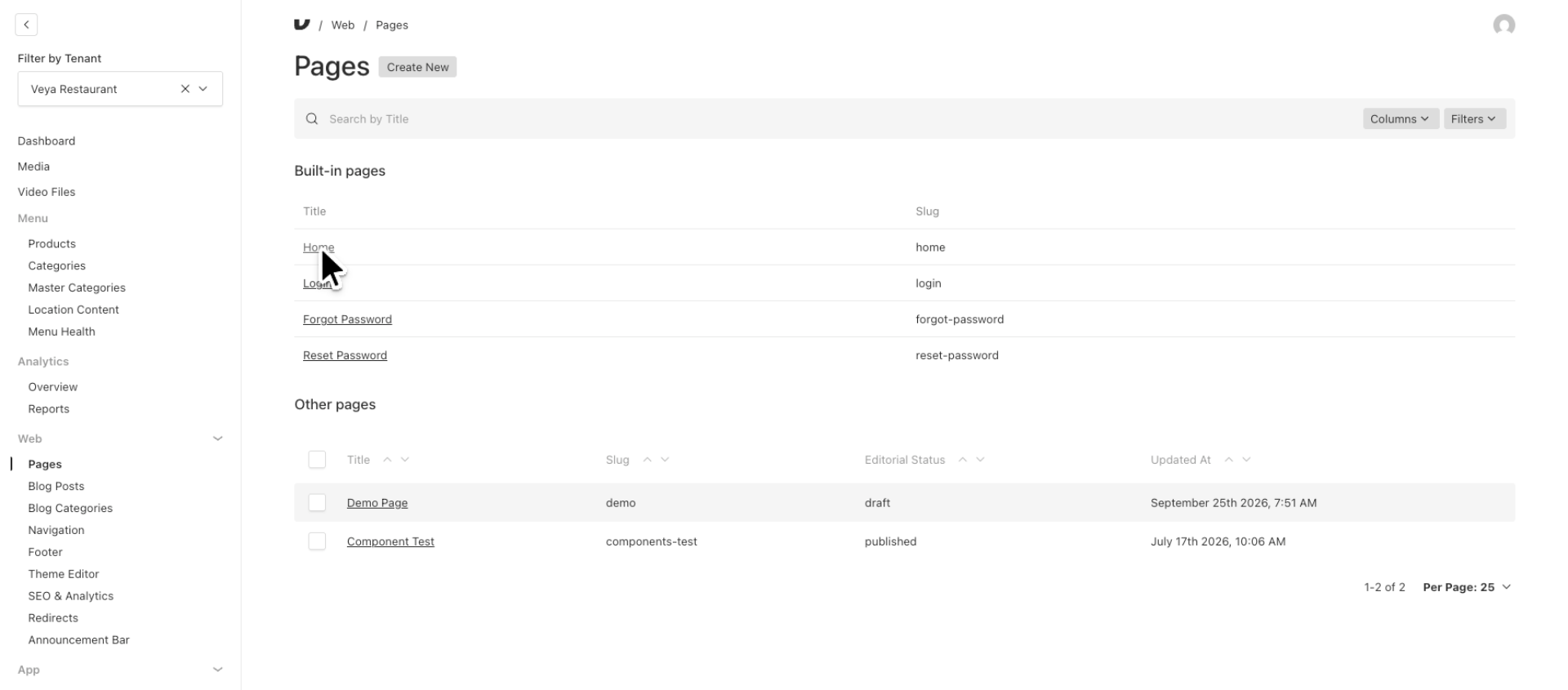
Click the Home page to begin editing its content.
3. Page Status
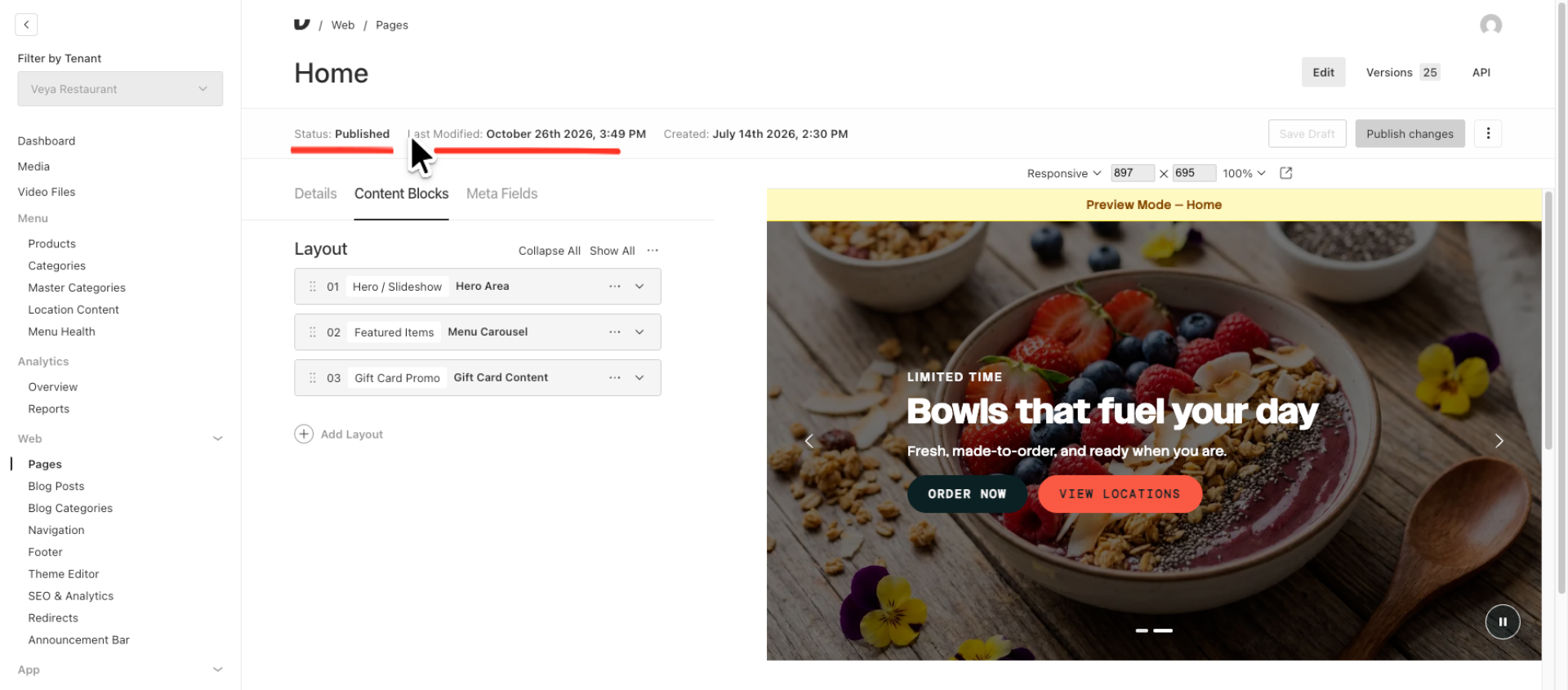
At the top of the page you can see that this current homepage has a status of Published. That simply means this page is currently live on your website. We can also see that this page was also last modified on October 26.
4. Edit Hero / Slideshow Layout
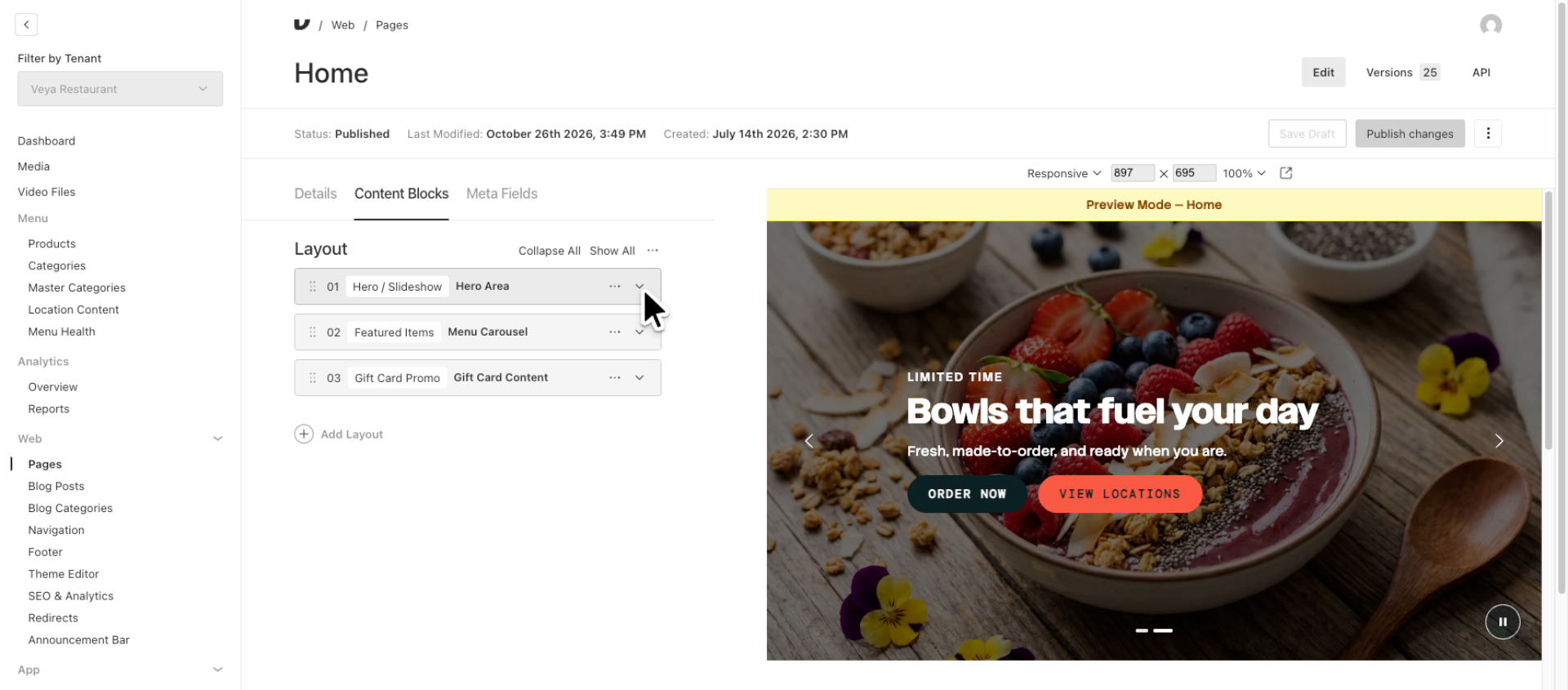
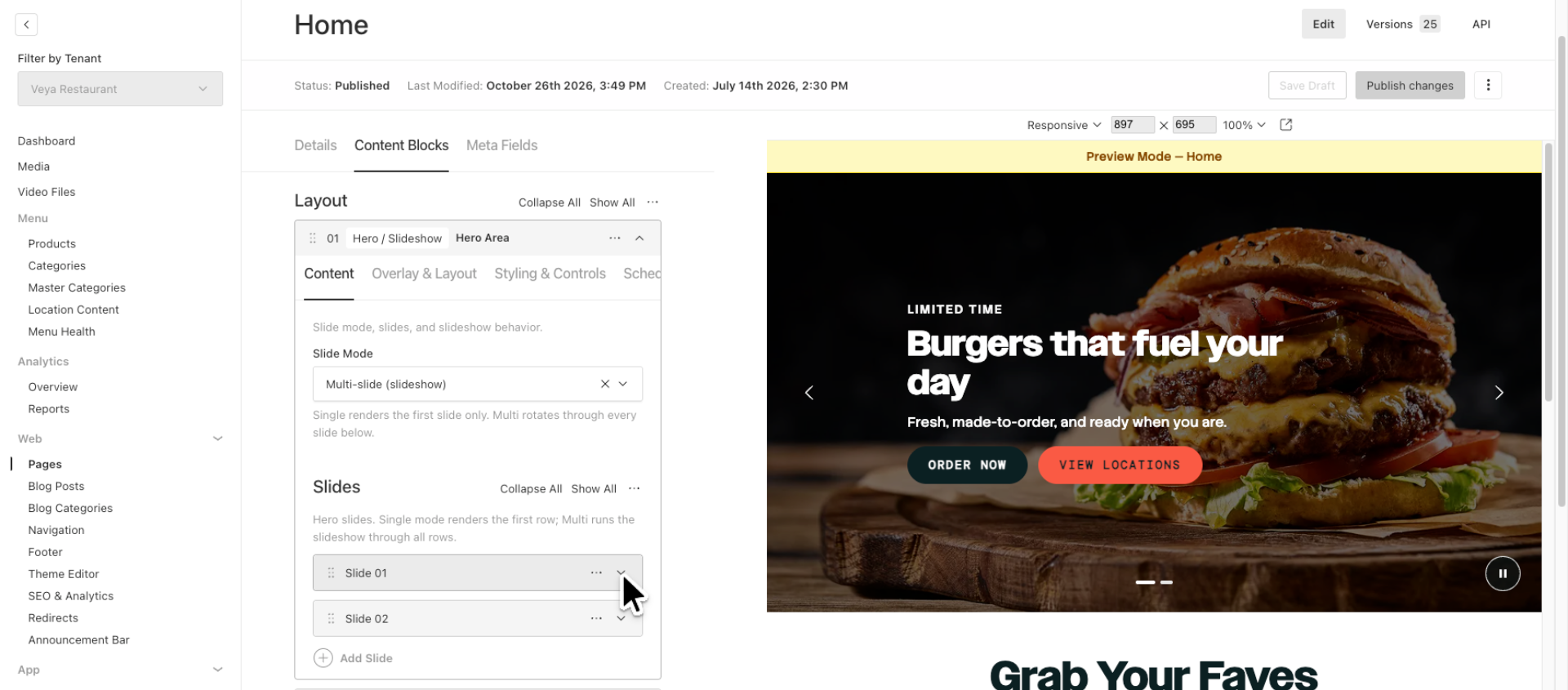
Lets make a quick change to one of our slides so we can see that in the live preview. Click on the down arrow of the Hero Slideshow to expand this layout section.
5. Expand Content Block
Lets open up Slide 1 by clicking the down arrow and expanding the content block.
6. Edit Eyebrow Text
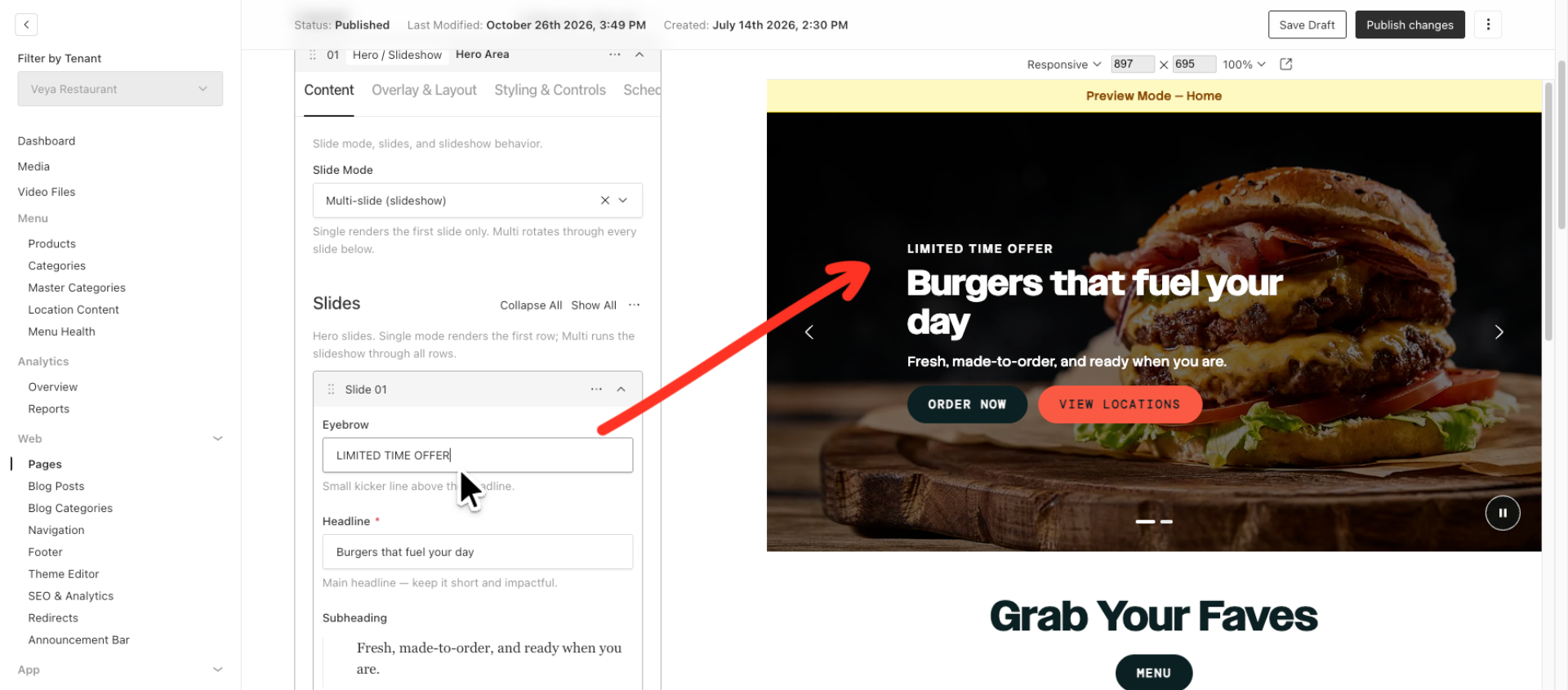
Our Eyebrow text says Limited Time lets change that to "Limited Time Offer". We can see that text now displayed in the Live Preview.
7. Save Draft Changes
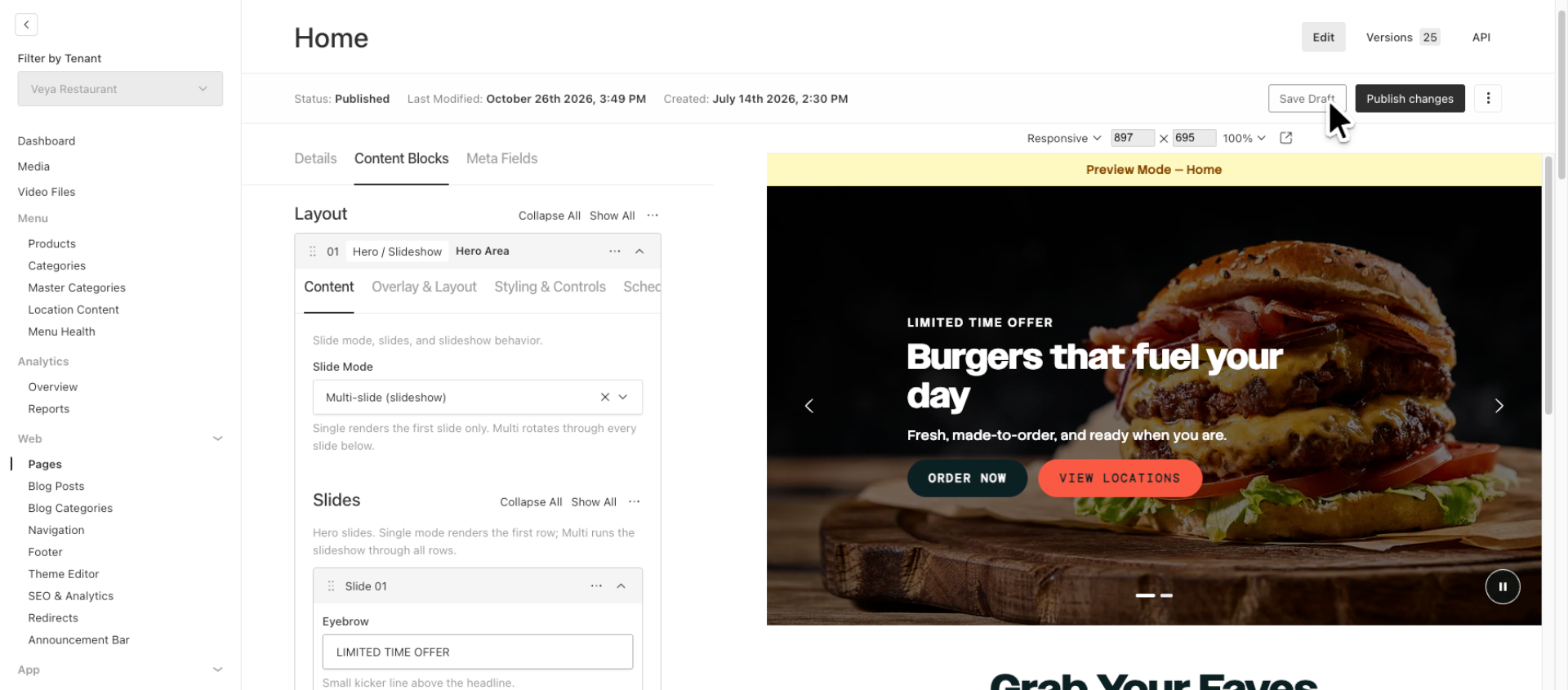
Click Save Draft to save your changes without publishing them.
8. Publish Page Changes
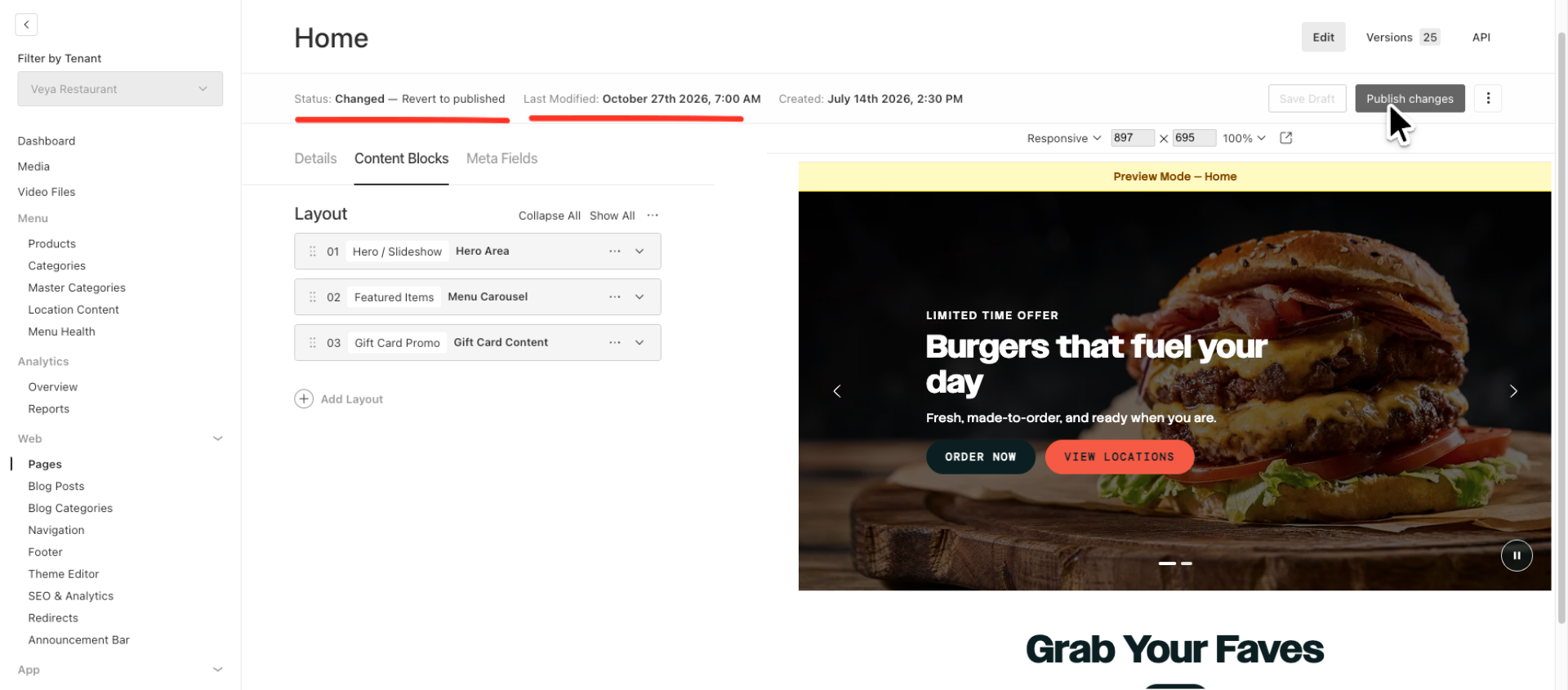
We can see that our Page Status has now been updated to "Changed" with our Last Modified date also changing to Oct 27th. If you are ready to publish you can click on "Publish Changes". This will then update the status of the page to "Published".
This walkthrough guides you through viewing a page status, editing content, saving drafts, and publishing changes.