
1.8 Restore a Previous Page Version
In this article group
- 1.1 Login Process for Veya CMS
- 1.2 How to Recover Access to the CMS
- 1.3 Exploring the Dashboard and CMS
- 1.4 Select Your Brand with the Tenant Filter
- 1.5 Overview of Pages and Layouts
- 1.6 Save a Draft, Preview and Publish
- 1.7 Preview Page Changes Across Devices
- 1.9 Upload and Organize Images in the Media Library
- 1.10 Image & Size Specs for Content Layouts
This walkthrough demonstrates how to undo changes or restore a previous version of a page. You will learn to navigate the interface for easy access to earlier versions.
Go to cms.builtonveya.com
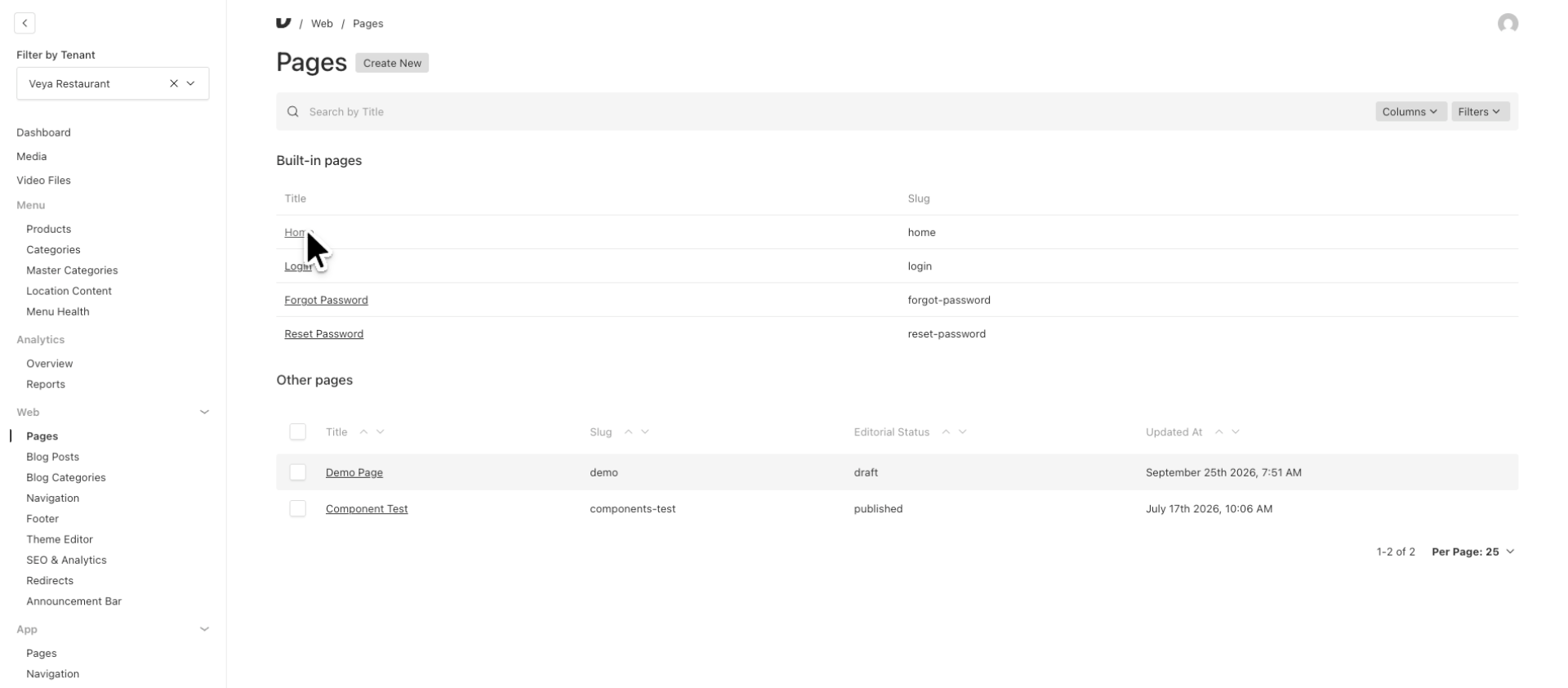
1. Navigate to Homepage
Let's begin by navigating to our homepage example located under Pages.
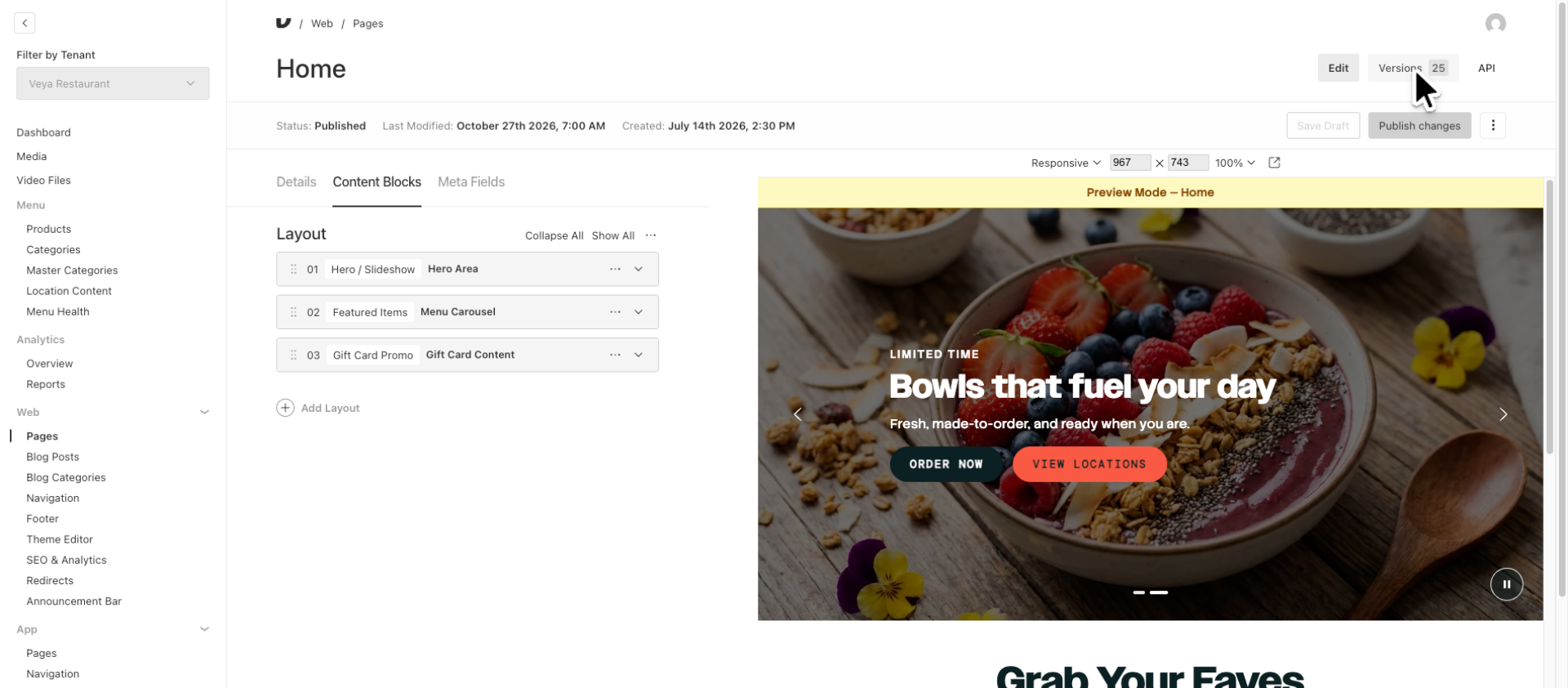
2. Access Versions Navigation
To access previously published versions, simply click the versions button located at the top. Here, you can see that the button is labeled "Version 25."
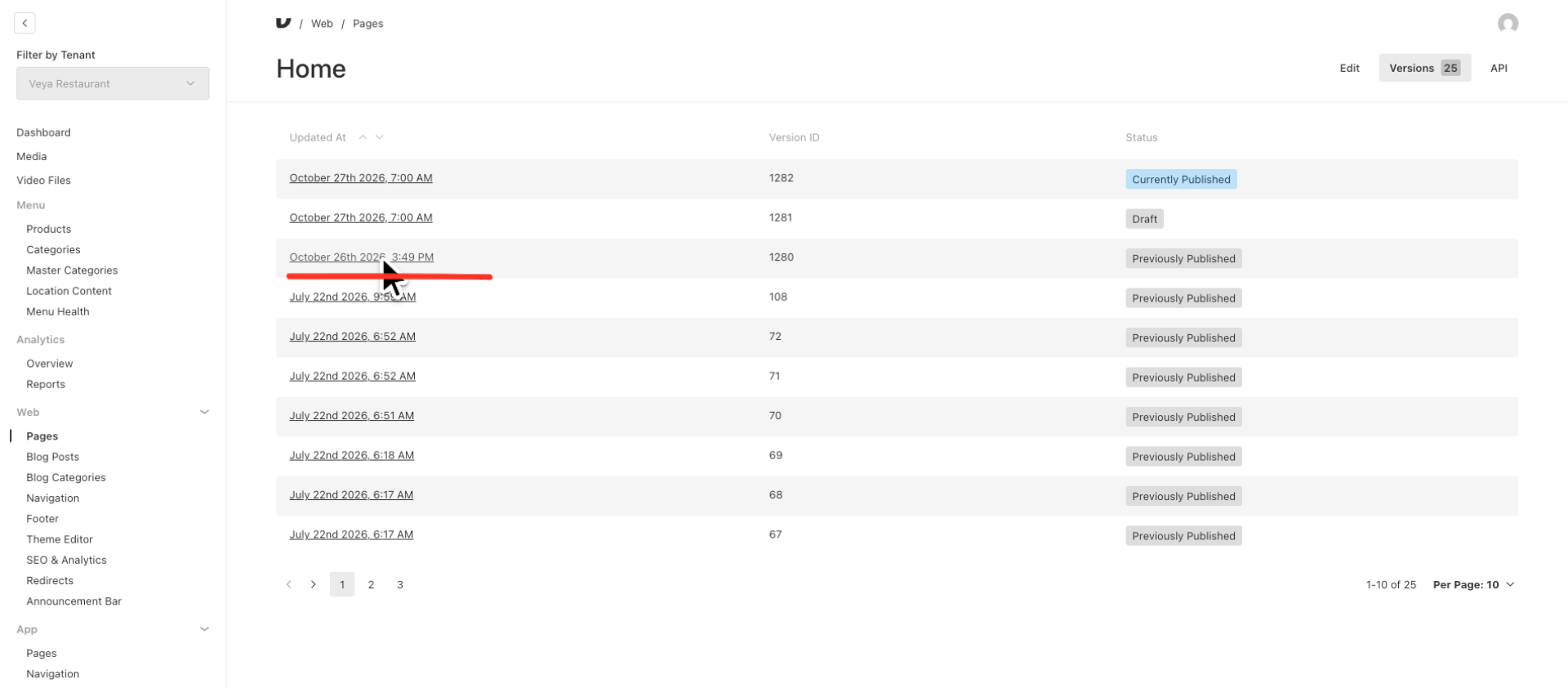
3. Select Previous Version
You can view all the previously published versions of our homepage here. Let’s assume we want to access the version that was published on October 26th, as we wish to revert our carousel slides to what was displayed on that day.
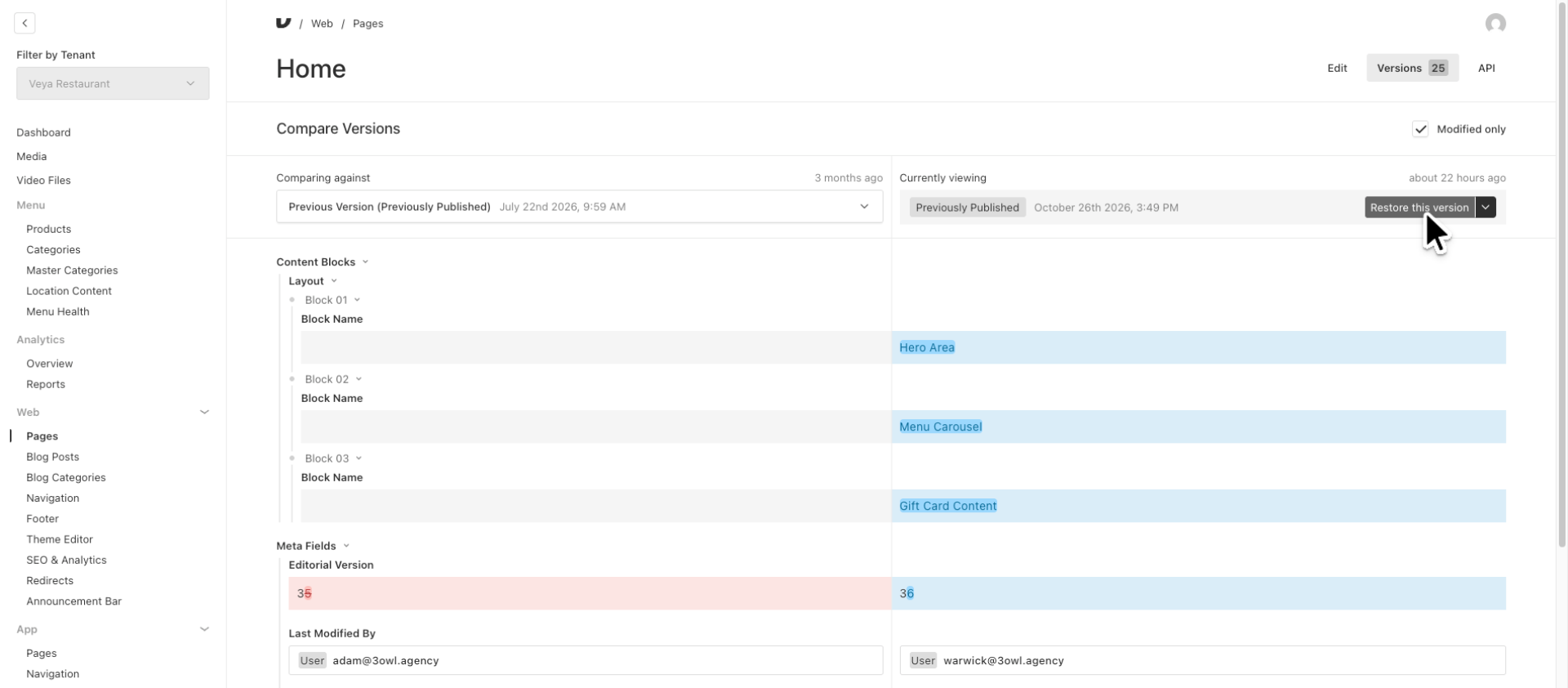
4. Restore Selected Version
On the next page, we can click "Restore the Version" to revert our site to the state it was in when this version was published.
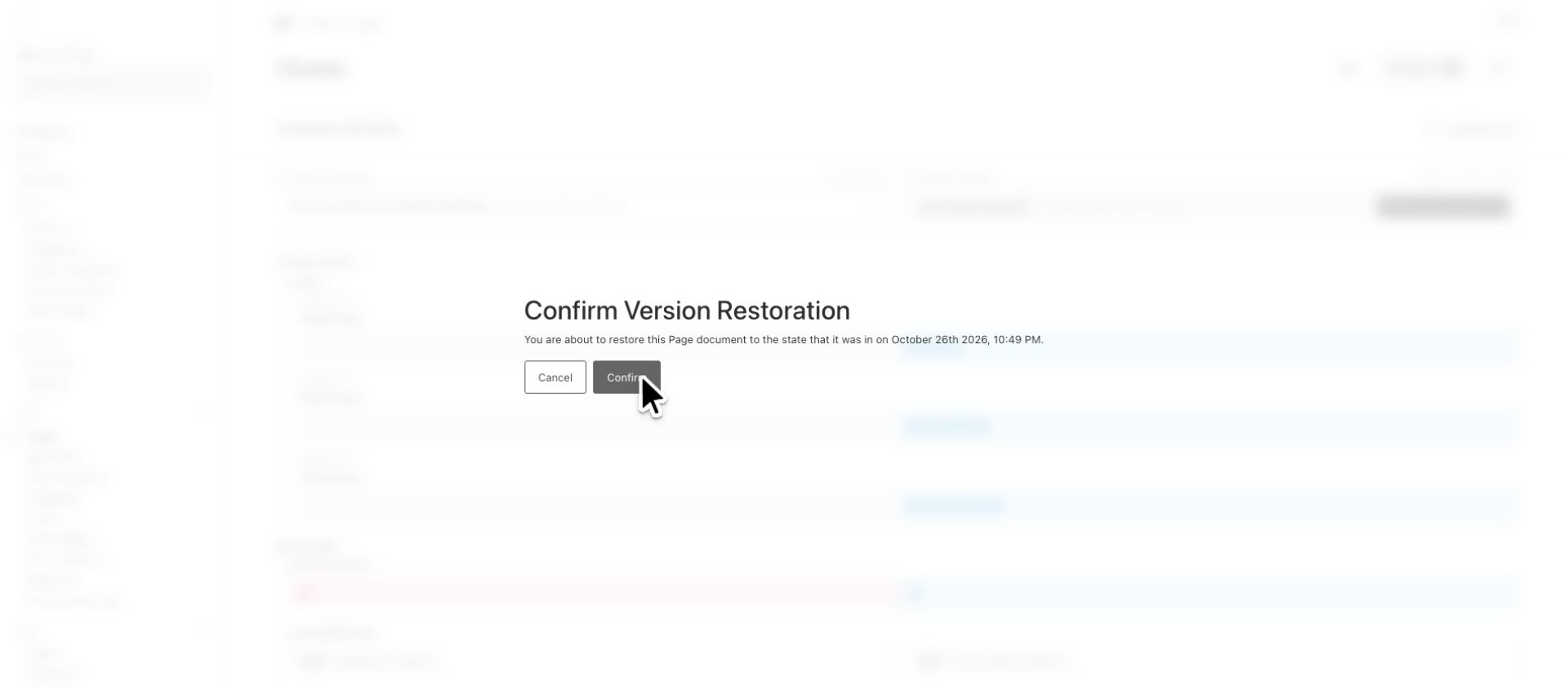
5. Confirm Version Restoration
Please confirm the restoration to revert the page to the chosen previous version.
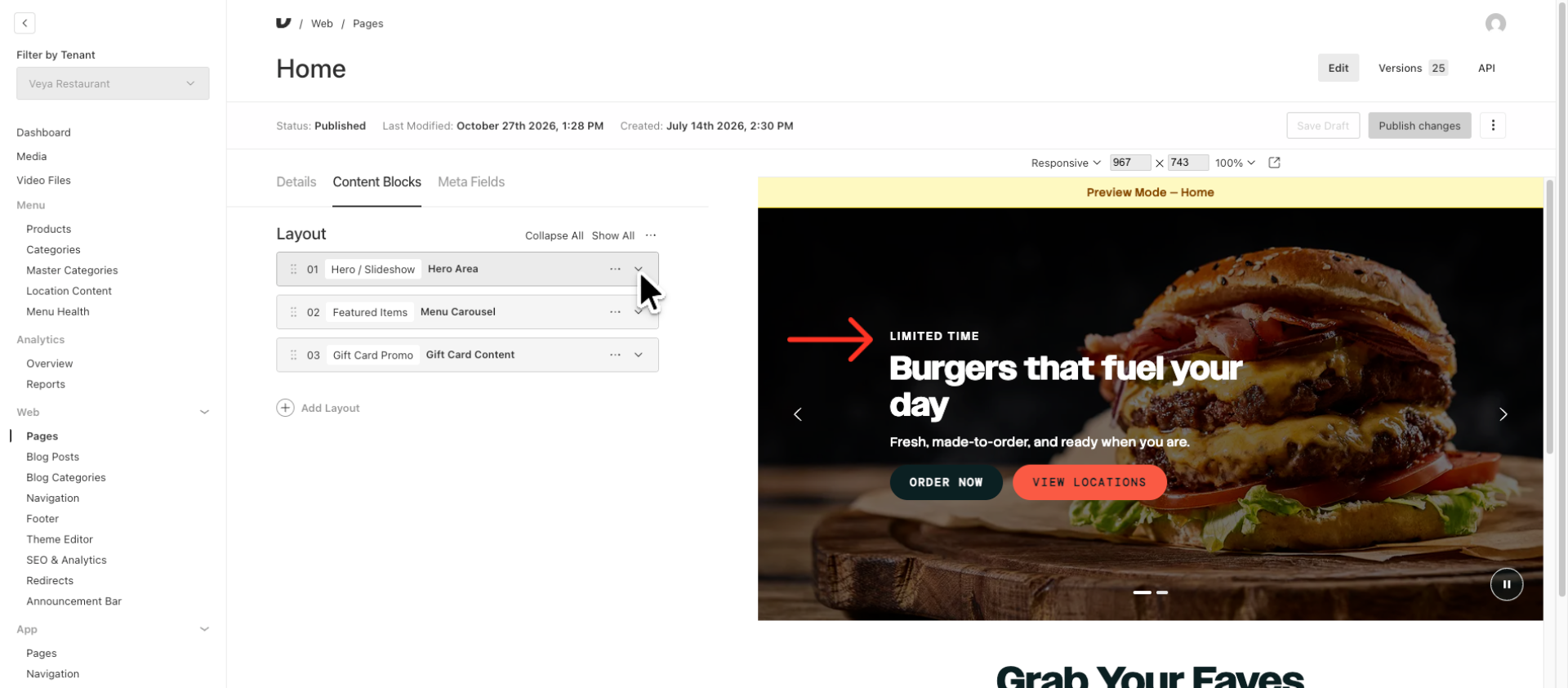
6. Toggle Block Visibility
In a previous video, we updated the eyebrow text on one of our Hero Slides from "Limited Time" to "Limited Time Offer." By clicking on the down icon, we can expand our Hero Layout section.
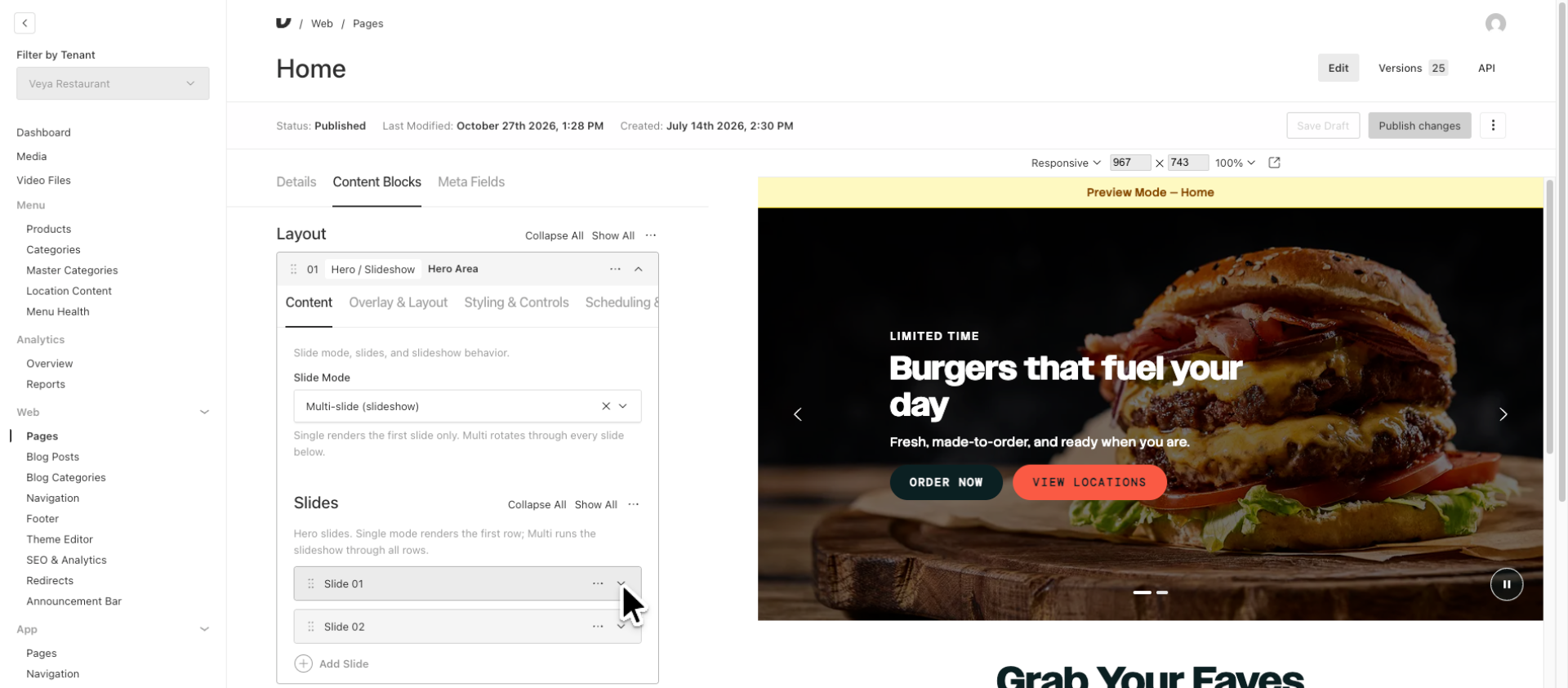
7. Toggle Block Again
Let's expand Slide 1, which is the slide we modified earlier.
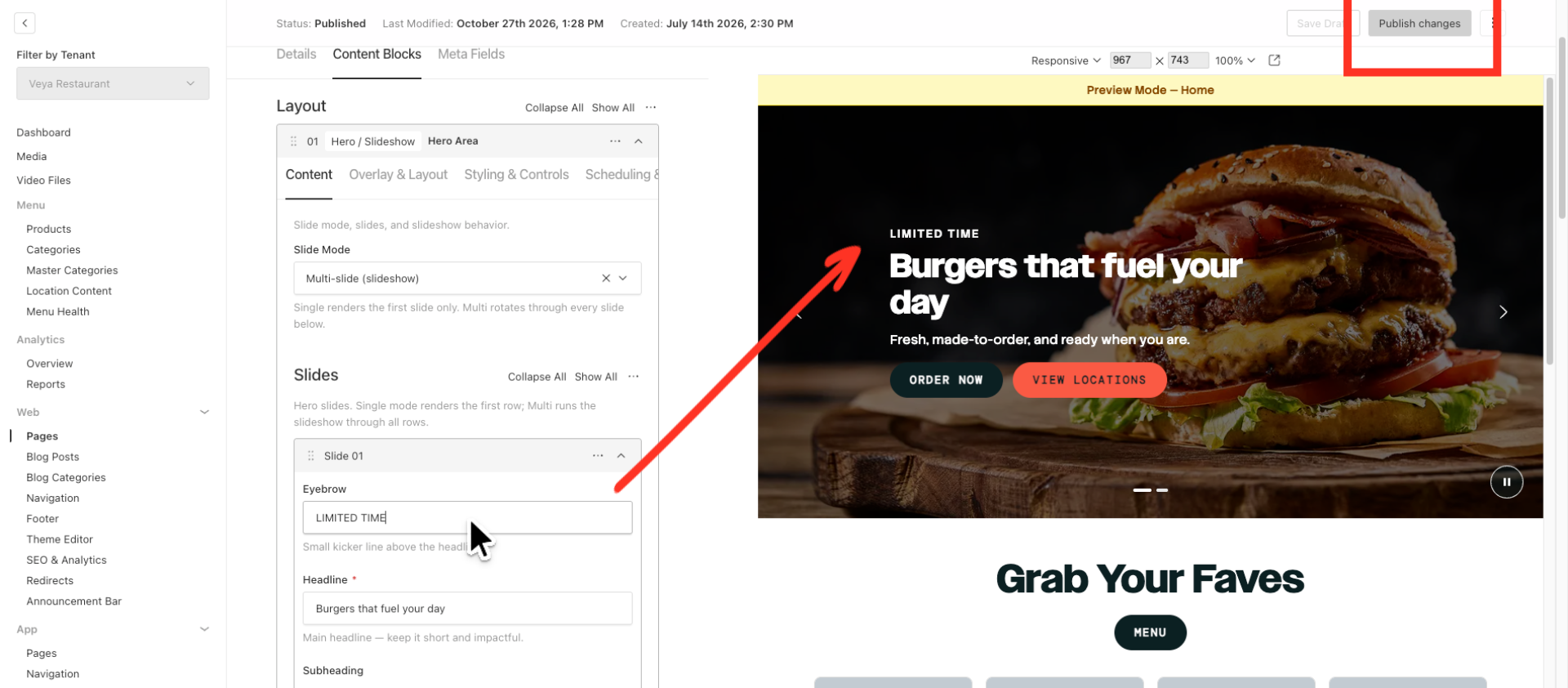
8. Review and Confirm Restoration
You can observe that Slide 1 now features the Eyebrow Text "Limited Time," which is also visible in our preview. Our site has successfully reverted to the previous version. The Publish Changes button at the top is greyed out, indicating that this version is now live on our site.
This walkthrough illustrates the process of undoing changes by restoring a previous version of a page, navigating through slides, and confirming content restoration in the CMS.